
User activation and login
User activation
Users will login to our service using either online banking, mobile ID or authenticator app (TOTP). We will send you an email invitation which contains an activation link and an SMS message containing a PIN code. NOTE: Activation is done only once. After activation, the login page is the link supplied to you in the invitation email.
Click the link in the email, after which you are taken to the activation page
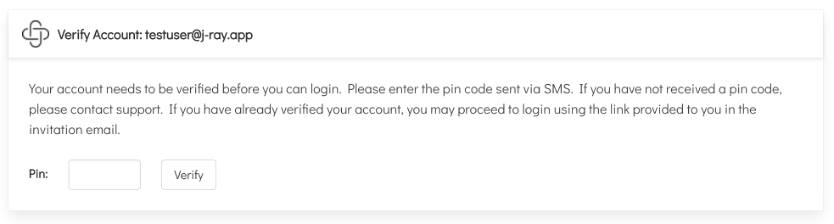
Insert the PIN code from the SMS message into the input field and press the Verify-button, after which you will presented with options on how to login. It is highly recommended you only choose Authenticator App if all other options are unavailable.
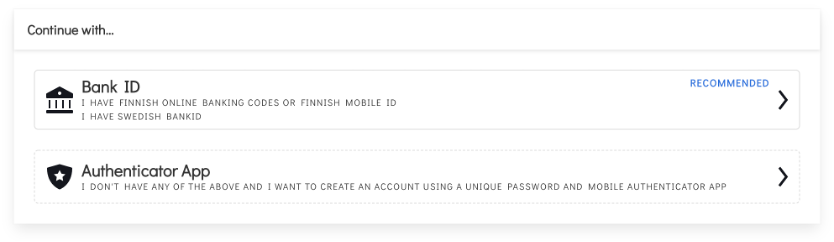
Option: Bank ID
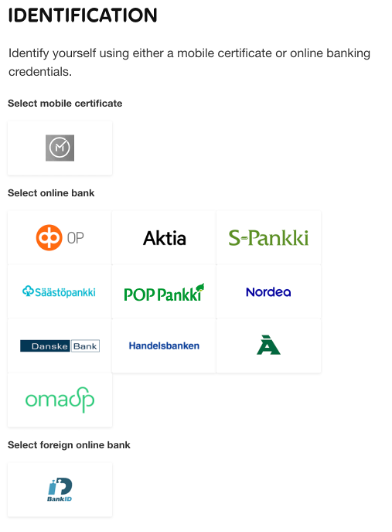
Click Bank ID, after which you will be redirected to Telia for authentication. Select your online bank, Swedish BankID or Mobile ID (Mobile ID is only available in Finland. For more information on Mobile ID, please contact your mobile provider.)
After successful authentication you will receive the following confirmation. In case of errors, please contact our support.

Press the Login-button, which will redirect you to the actual login page
Follow the steps in Login with an activated account in this guide
Option: Authenticator App
Click Authenticator App, after which you will be redirected to our service provider Auth0 to set a password
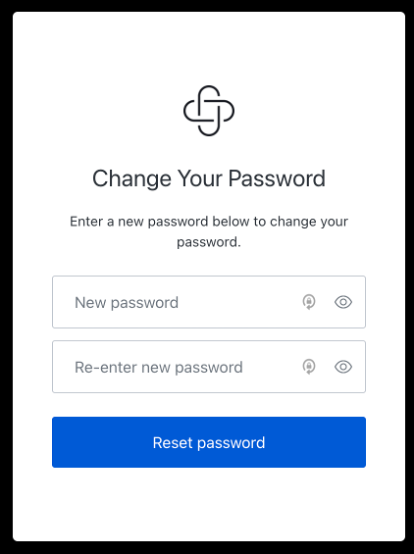
After successfully setting a password, click the Back to TOTP activation-button
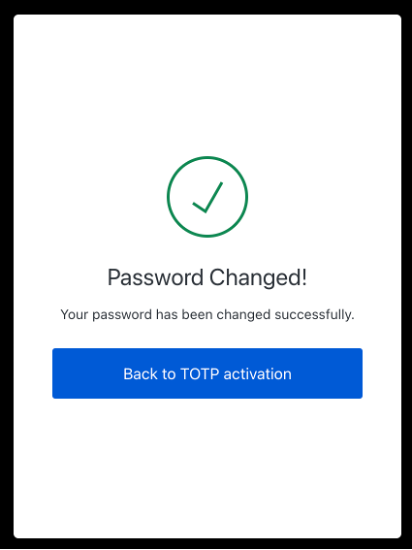
After returning from the password page, you will receive the following confirmation. Click Login to proceed.

You will be prompted to login using the email address you received the invitation to and the password you just created
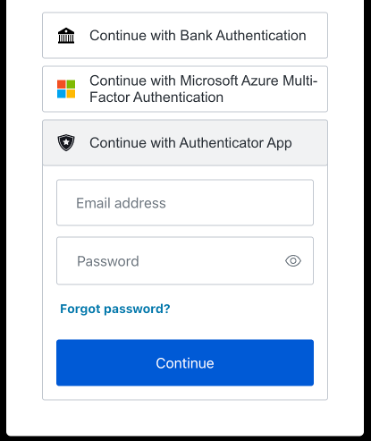
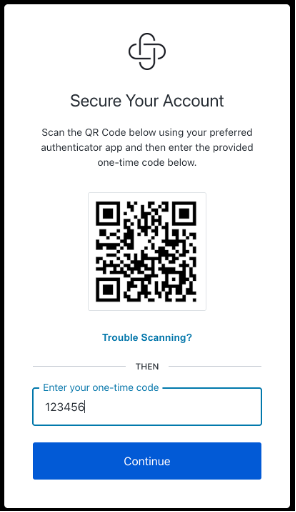
After this, you are asked to scan the provided QR code using Microsoft Authenticator or similar app on your mobile phone. This is the second factor in secure multifactor authentication and is necessary to provide secure access to our service. Open your Authenticator app and add a new account. For Microsoft Authenticator:
Click the plus (+) icon
Select Other (Google, Facebook, etc.)
Allow camera access if requested
Point the camera at the QR code
Read the one-time code from the JAY Identity account in the authenticator app and type it in to the form on the website
Login with an activated account
Note: Before you login for the first time, you must activate your account by following the steps above.
Open the service by clicking the link you received in your invitation email, after which you will be redirected to our login page. NOTE: Do not bookmark this page, instead bookmark the page after successfully logging in.
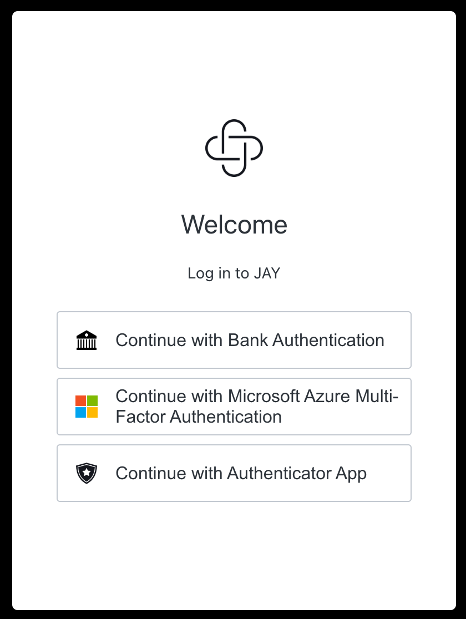
From the options select:
For Finnish and Swedish customers: Continue with Bank Authentication, after which you will be redirected to Telia for authentication.
Finnish users: Regardless of which option you chose in the activation phase, you may login using any of your online banks or the Mobile ID.For customers from other countries: Continue with Authenticator App, after which enter your email address and password, after which you will be prompted for a code from Microsoft Authenticator or similar mobile application. On first login you will be prompted to add an account to the Authenticator app by scanning a code with the Authenticator app. In case you have forgotten your password or have not received one, you may request a password reset link to your email address from the Forgot password-link.
After successful authentication you will be redirected back to the application. In case of errors, please contact our support.